
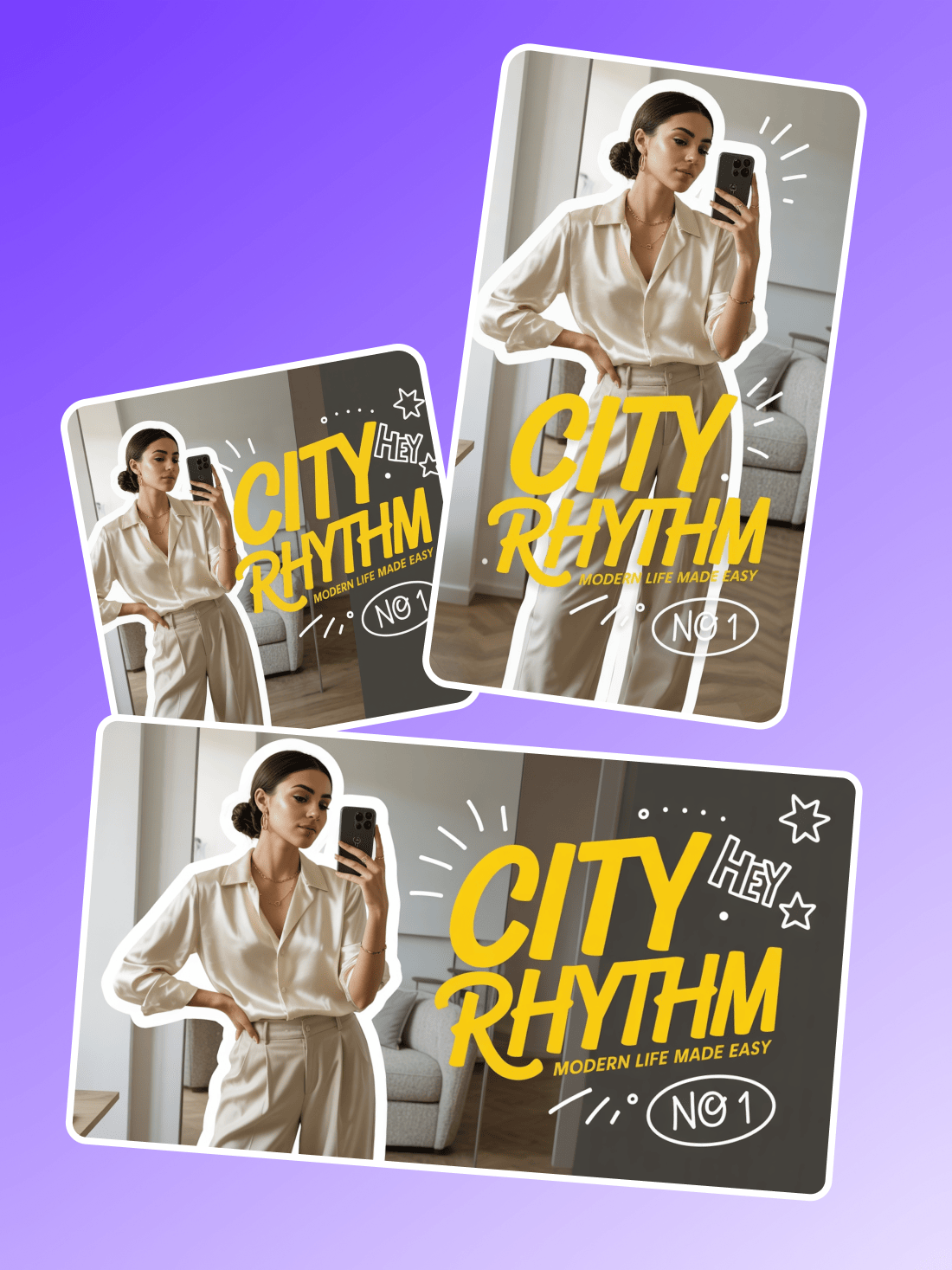
Why Content-Aware AI Resizing Beats a Simple Crop
The demo above shows the same photo at three different output sizes, each with the "CITY RHYTHM No.1" text overlay fully intact. A traditional resize tool would either shrink the text into illegibility or slice it off at the crop boundary. Content-aware AI treats text regions and key subjects as high-priority zones, scaling them independently from the background so lettering stays readable regardless of the target aspect ratio.
Where this matters most is multi-platform publishing. An Instagram feed post needs a 4:5 portrait. A YouTube thumbnail needs 16:9 landscape. A Facebook share card needs 1.91:1. Each platform demands a different frame, and doing three manual crops per image adds up to 10–15 minutes of dead time every post cycle. AI resizing collapses that into a single prompt: name the platforms, and the agent outputs all sizes from one upload.
The real gain is not speed alone — it is consistency. When you resize manually, you make slightly different framing decisions each time. AI locks the subject position and text placement across every output, so your brand looks the same whether a viewer sees you on Instagram, YouTube, or LinkedIn.
Key Insight: The bottleneck in multi-platform publishing is not creation — it is reformatting. Content-aware AI resizing turns a per-platform manual task into a single conversation.
How to Get the Right Resize from One Prompt
Name the Exact Platform and Format
Saying "Instagram post" works, but "Instagram Story 9:16" or "Instagram Reel cover" is more precise. The agent picks the correct pixel dimensions when you specify the exact placement within the platform.
Change: replace "Instagram post" with your target platform and format name
Call Out Text and Key Elements
If your image has overlay text, logos, or faces near the edges, tell the agent to protect them. "Keep the text large and centered" prevents the most common resize failure — critical content getting cropped at narrow aspect ratios.
Change: add "keep [element] visible" for each element that must survive the crop
Request Multiple Sizes in One Message
Instead of resizing one platform at a time, list all targets in a single prompt — "Instagram post + YouTube thumbnail + Facebook cover." The agent batches them from the same source image.
Change: list every target platform in one prompt instead of sending separate requests
Common Pitfall: Asking for a resize without specifying the platform. The agent defaults to a generic square crop, which may not match your intended use and risks cutting off edge content.
Frequently Asked Questions
Can I resize one image for multiple social media platforms at once?
Yes. List every platform you need in your prompt — Instagram, YouTube, Facebook, LinkedIn — and the agent generates all sizes from one upload. Each output uses the platform’s recommended dimensions.
Why does AI resizing keep text readable when a manual crop would not?
The AI treats text regions as high-priority zones and scales them independently from the background. Instead of uniformly shrinking the entire image, it expands or fills the background around the text so the lettering stays at a legible size.
What image formats and sizes can I upload?
PNG, JPG, and WebP all work. There is no strict pixel limit, but images under 4096×4096 process fastest. If your source image is small, the AI upscales it before resizing so the output stays sharp.