
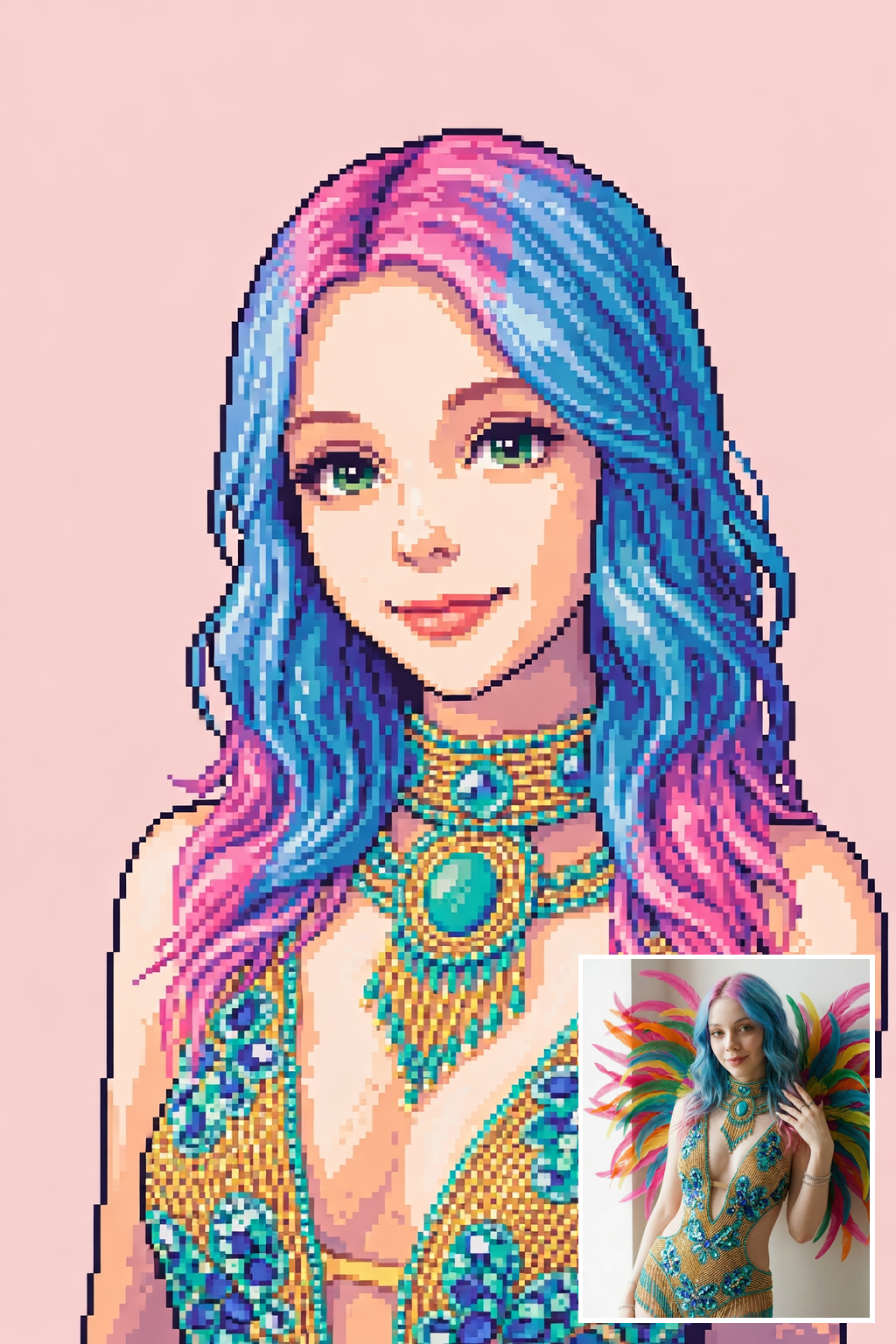
What Makes a Photo-to-Pixel-Art Portrait Actually Look Like Pixel Art
Look at the small square inset in the bottom-right corner — that is the only thing the user uploaded, a plain headshot of herself. Everything else in the frame — the 1-pixel black outline around the silhouette, the three-tone hand-dithered hair, the limited SNES-era palette, the hard pixel edges on the cheeks and lips — is what the AI pixel generator prompt built on top of her face. Her exact features, bone structure and hair length are preserved byte-for-byte from the inset; the prompt never touches her identity.
This is why the page ships with one hero image instead of a before/after slider. The hero is the before/after. You can literally see the source photo in the corner and the 16-bit translation around it at the same time. The moment you upload your own selfie or AI influencer persona, you become the person in the middle — the inset updates to your photo, and the pixel portrait regenerates around it.
The pixel grid, the palette and the dithering are the prompt's job. Your face is yours. That is the whole contract.
Key Insight: A generator only counts as pixel art when you can still see every individual pixel on the face. The moment the face goes smooth, it is a filter, not pixel art.
How to Remix This Photo-to-Pixel-Art Prompt
Tip 1: Swap the era cue
The prompt currently says 16-bit SNES-era with a 32-color kawaii palette. Replace this single phrase with 8-bit NES-era, 56-color palette, 1-pixel outline for a blockier retro read, or GBA handheld palette, 32-pixel character for the tiny Pokemon-style result. Every other line keeps working because the identity preservation and the pixel rules are written around the era, not inside it.
Change: the era and palette line only
Tip 2: Lock your AI influencer persona instead of a selfie
If you are building a creator identity, do not upload a random selfie — upload your AI influencer reference sheet instead. The prompt references the person from Image 1, so whatever you put in Image 1 becomes the identity anchor. Your persona stays consistent across every pixel variation you generate afterwards.
Change: upload a persona reference sheet in place of a selfie
Tip 3: Preserve a signature hair color
If your upload has pink, blue, green or any saturated hair color, keep the last line of the prompt intact. It explicitly tells the model to preserve the hair color exactly instead of neutralizing it, which is what most generic pixel generators do by default. This is how the demo hero keeps the bluewash from the original photo.
Change: do not edit the final line of the prompt
Common Pitfall: Writing cute pixel art of me without naming a palette size, an outline rule and a character height. Nano Banana will then produce a smooth painterly blob that looks pixel-adjacent but has none of the grid discipline. Always keep the color count, the 1-pixel outline rule, and the character pixel height in the prompt.
Frequently Asked Questions
Will the pixel generator preserve my exact face and hair color?
Yes. The prompt is explicitly built to preserve your facial features, bone structure, hair length, eye shape and any distinguishing marks from the photo you upload, referenced as the person from Image 1. It also preserves saturated hair colors like pink or blue instead of neutralizing them, which is the number one drift mode of generic photo-to-pixel-art tools.
Can I use my AI influencer persona reference instead of a real selfie?
Yes, and it is the recommended path for creators. Upload the persona reference sheet as the sending image — the pixel prompt translates the look while the reference locks the identity, so every new pixel portrait you generate reads as the same character. See Tip 2 in the How to Remix section above.
What aspect ratio and output size work best for pixel portraits?
4:5 portrait at around 1024x1280 is the sweet spot. It fits Instagram, TikTok and Xiaohongshu feeds without cropping, and a roughly 256-pixel character height inside a 1024-wide canvas scales cleanly by 4x with no upscaling blur.