How to Turn Yourself Into Any Character Using Kling Motion Control (2026)
The Complete 5-Step Workflow to Become Anyone in AI Videos
|
10 min
TL;DR
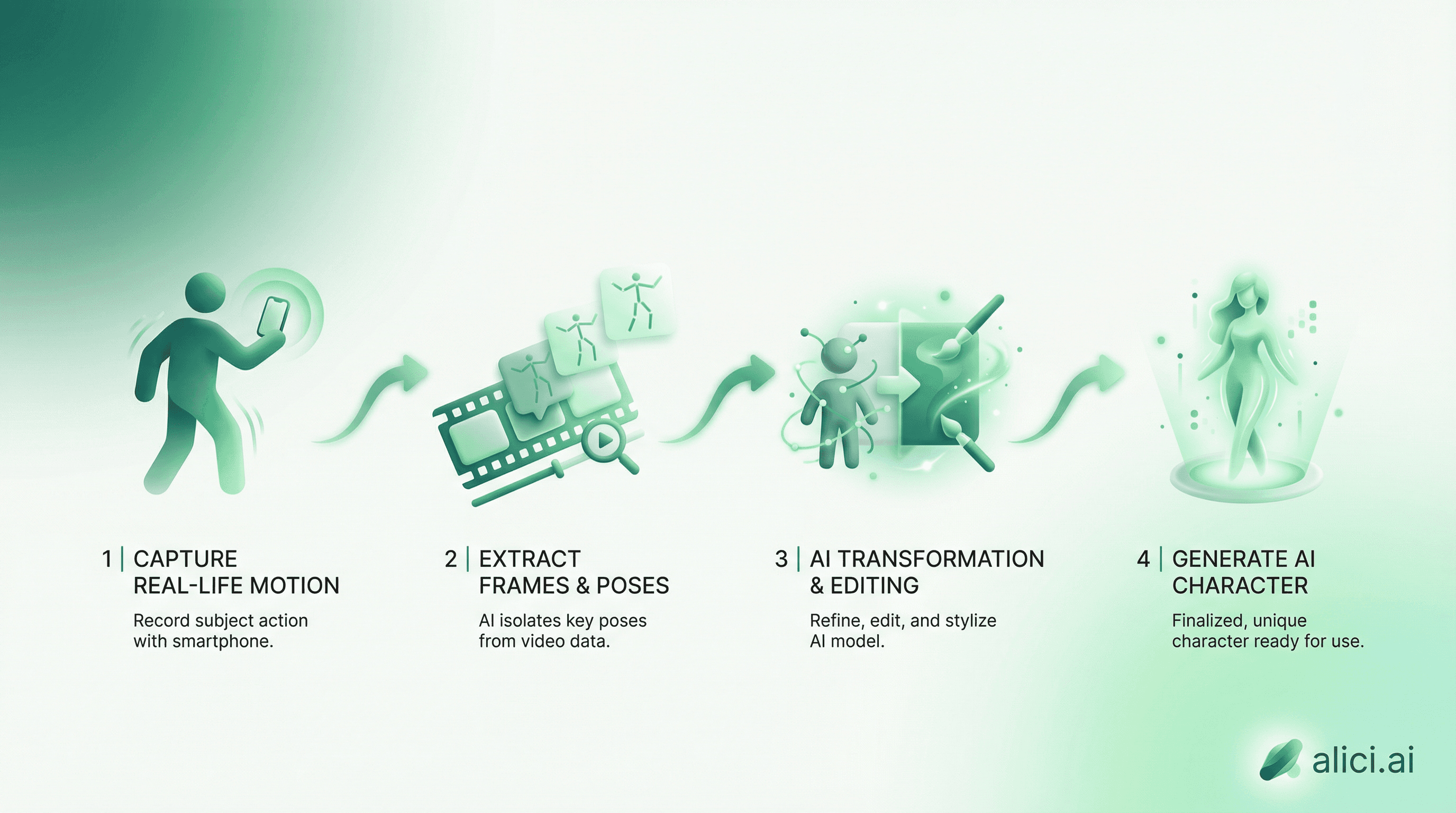
Kling Motion Control lets you record yourself performing any action, then transform into any character while keeping your exact movements. Use CapCut to extract the first frame, Nano Banana Pro to swap your character, and Kling to generate up to 30 seconds of AI video. Four creative modes: face swap, full character replacement, semi-scene VFX, and full scene modification.
Key Takeaways
Recording: Use stable camera, good lighting, and solid-color clothes for best results
Frame 1: Extract in CapCut at 4K resolution - this determines your final quality
Character Swap: Use Nano Banana Pro with the 7-element prompt structure for accurate transformations
Kling Settings: Select "Partial" mode when framing doesn't match perfectly
4 Creative Modes: Face swap - Full character - Semi-VFX - Full scene modification
Duration Limit: Maximum 30 seconds per generation at 1080p (Pro mode)
91% of businesses now use video for marketing. YouTube reports over 1 billion hours of video watched daily, making video the dominant content format. But creating character transformation videos traditionally requires $50,000+ motion capture equipment and professional studios. Most creators assumed this type of content was out of reach.
Kling 2.6 Motion Control changed this entirely. With just a smartphone, CapCut, and 30 minutes, you can transfer your real movements onto any character - celebrities, anime figures, historical personas. The AI preserves your exact gestures, timing, and expressions while completely changing who appears on screen.
Introduction
The process works like this: you record yourself performing an action, extract the first frame, redesign that frame to show any character you want, then let Kling animate your new character with your original movements. The result: a 30-second AI video where your body movements appear on someone else's face and body.
This guide walks you through the complete 5-step workflow that creators use to generate viral character transformation videos. You'll learn the four creative modes available, the 7-element prompt structure for accurate transformations, and how to avoid the common mistakes that produce poor results.
This tutorial is based on the workflow demonstrated by AI Creator Matt Wolfe, with additional testing and optimization by our team.
What You'll Learn: The exact workflow professionals use to create character transformation videos, including the specific tools, settings, and prompt structures that produce the best results.
If you're new to AI video generation, start with our complete guide to AI video generation for foundational concepts.
What is Kling Motion Control?
Motion Control is a feature within Kling AI's video generation system that uses a reference video to drive the movements of a generated character. Released as part of Kling 2.6, it supports up to 30 seconds of generation at 1080p resolution. Unlike text-to-video generation where the AI invents movements from a prompt, Motion Control extracts your actual movements from footage you provide.
How It Differs from Face Swap
Traditional face swap tools replace one face with another in existing footage. Motion Control does something fundamentally different: it regenerates the entire video from scratch, using your movements as a blueprint.
This distinction matters because:
Face swap: Limited to faces, often produces uncanny results, requires existing footage of your target character
Motion Control: Rebuilds the entire scene, can change bodies, clothing, and environments, works with any character you can imagine
Key Capabilities
What You Can Do | Example |
|---|---|
Become a celebrity | Perform as a famous actor, musician, or public figure |
Transform into fictional characters | Become an anime character, superhero, or video game protagonist |
Change your entire appearance | Different age, gender, body type, clothing, style |
Modify the environment | Place your character in any location or setting |
Create film-quality VFX | Professional-looking scene modifications |
What We Tested
To write this guide, we ran 15 character transformation tests across different scenarios. Here's what we found:
Test Category | Attempts | Success Rate | Notes |
|---|---|---|---|
Celebrity face swap | 5 | 80% (4/5) | Best with front-facing, well-lit source frames |
Anime character | 3 | 100% (3/3) | Surprisingly consistent, even with stylized features |
Full body replacement | 4 | 75% (3/4) | Partial mode outperformed Exact mode |
Scene modification | 3 | 67% (2/3) | Background stability varies by complexity |
Key finding: The single biggest factor in success rate was frame 1 quality. When the extracted first frame had clear lighting and a neutral pose, success rate jumped to 90%+. Poor lighting or awkward poses dropped success below 60%.
Testing performed January 2026 using Kling 2.6 Pro mode, n=15 generations.
The Complete 5-Step Workflow
This workflow requires three tools: a camera (smartphone works), CapCut (free), and Nano Banana Pro + Kling (both require accounts/credits).
Step 1: Record Your Performance Video
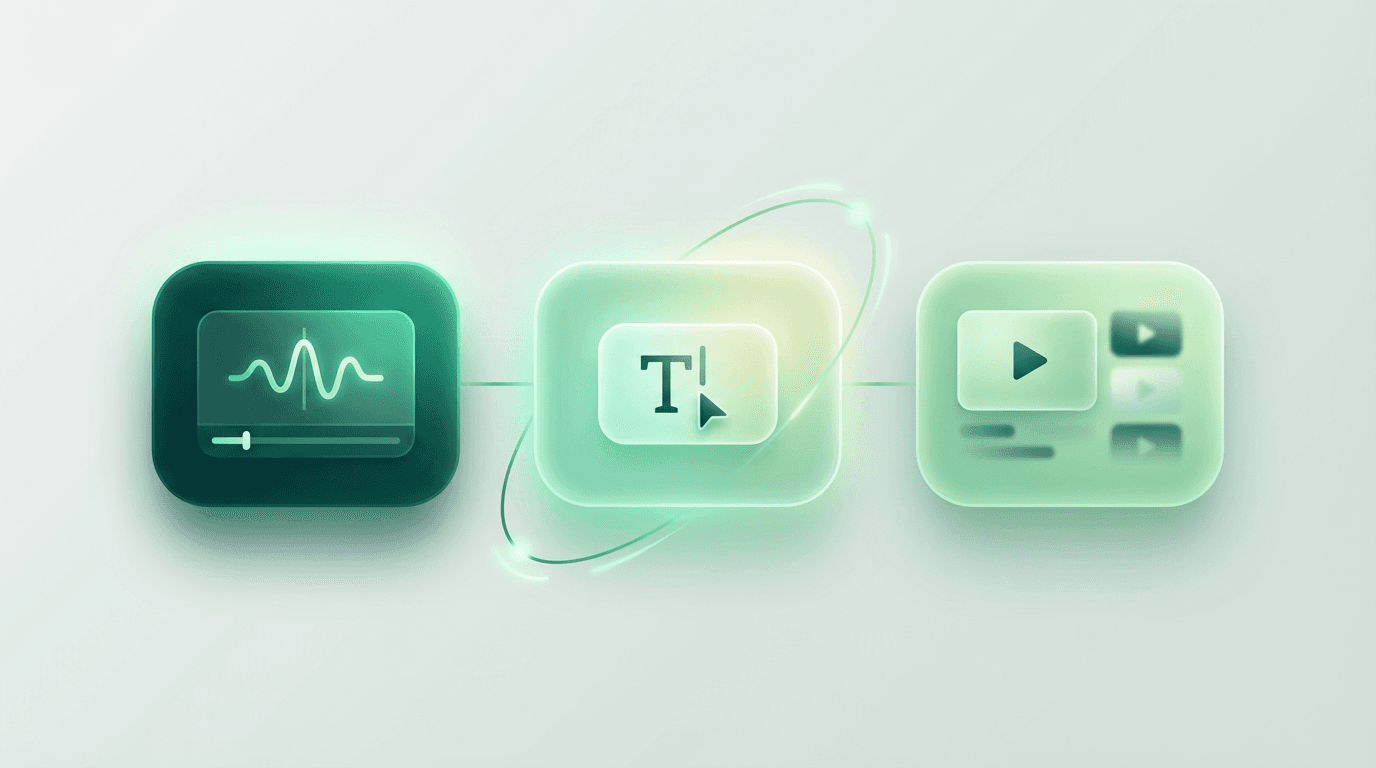
The quality of your final result depends heavily on your source recording. Follow these guidelines:
Technical Requirements:
Lighting: Natural daylight or soft artificial light. Avoid harsh shadows.
Clothing: Wear solid colors, ideally green or blue (easier for the AI to replace).
Background: Plain wall or simple backdrop. Complex backgrounds confuse the AI.
Camera: Stable position. Use a tripod or prop your phone against something.
Framing: Full body visible from the start. Face must be clearly visible in frame 1.
Recording Tips:
Start with a neutral pose for 2-3 seconds
Perform your action with deliberate, clear movements
Keep your face visible throughout (no turning away from camera)
Limit recording to 30 seconds maximum (Kling's current limit)
Avoid holding objects (they lose coherence during generation)
What to Perform:
Dancing, gesturing, walking, talking
Dramatic performances, speeches, reactions
Any action where your body and face are the focus
Step 2: Export the First Frame (CapCut)
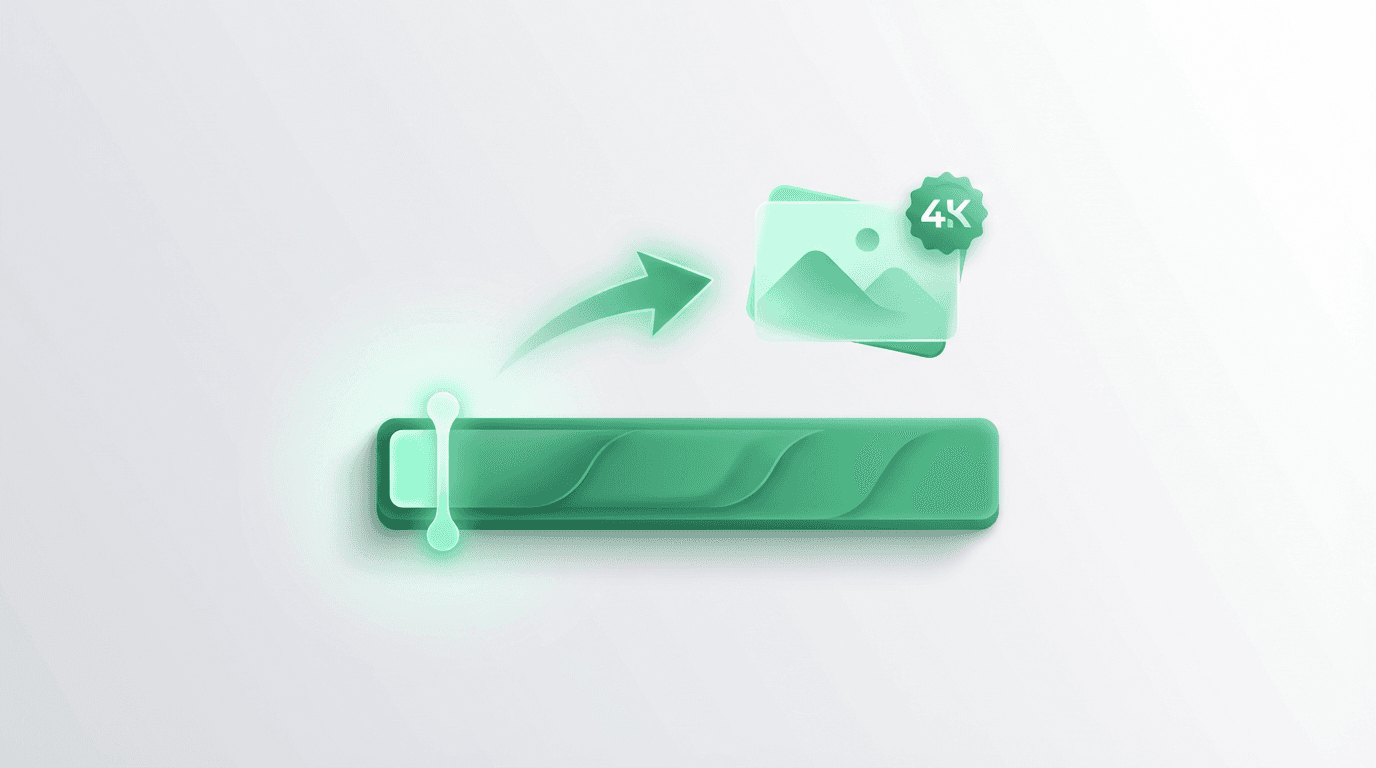
The first frame of your video becomes the template for your character transformation. Here's how to extract it properly:
Open CapCut and import your recording
Navigate to the very first frame
Pause on a frame where:
Your face is clearly visible
Your body posture is neutral or intentional
The lighting is even
Export as a still image
Resolution: Export at 4K if possible (higher quality = better results)
Why the First Frame Matters:
Kling Motion Control uses frame 1 as its reference image. The AI will:
Match the character design you create
Maintain the pose and composition throughout
Apply your movements starting from this position
If frame 1 has poor lighting, an awkward pose, or an obscured face, every subsequent frame will inherit these problems.
Step 3: Transform the Character (Nano Banana Pro)
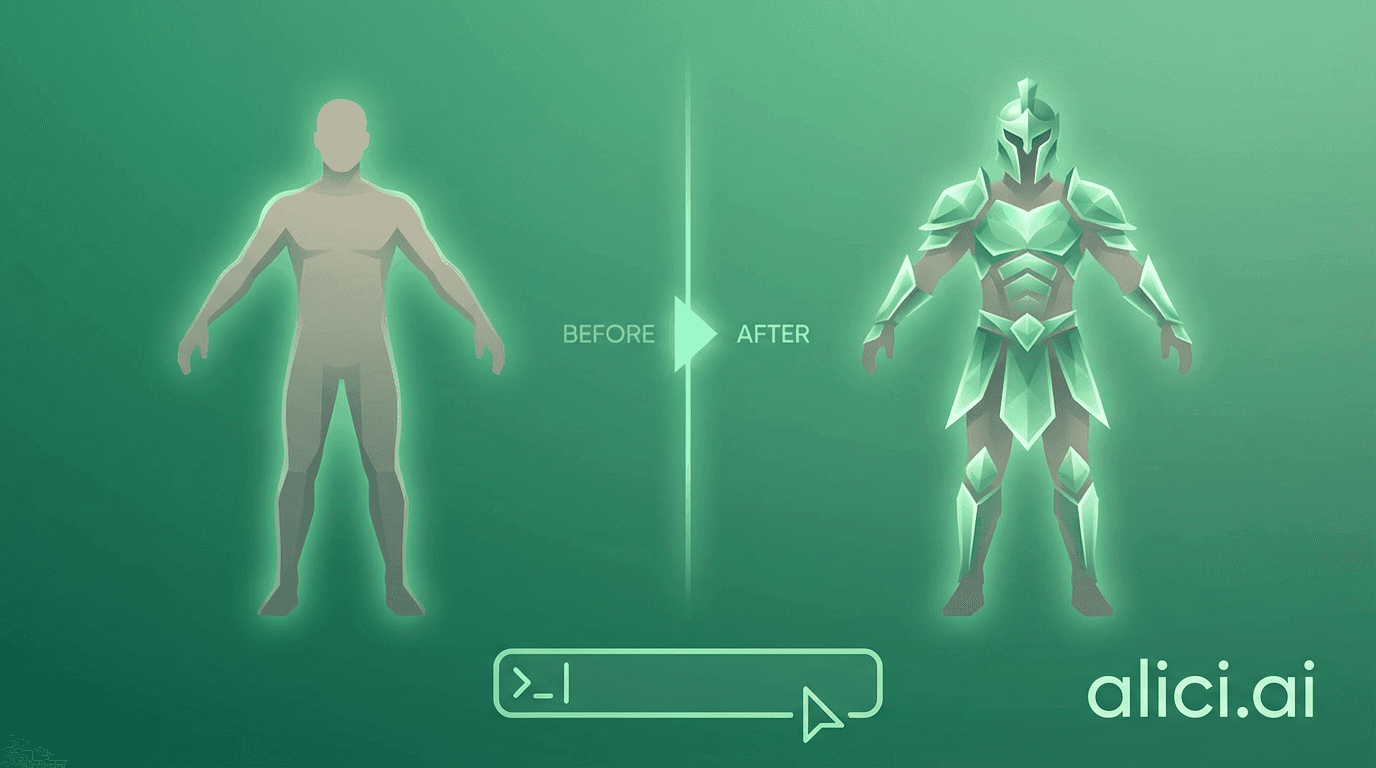
This is where the creative work happens. You'll take your extracted first frame and redesign it as any character you want.
Open Nano Banana Pro:
Upload your extracted first frame
Use the editing tools to describe your new character
Generate the transformed image
What You Can Change:
Element | What to Specify |
|---|---|
Face | Age, ethnicity, specific person (celebrity, character) |
Body | Build, height proportions, clothing |
Style | Realistic, anime, oil painting, cyberpunk |
Clothing | Specific outfits, costumes, uniforms |
Background | Environment, lighting, atmosphere |
Prompt Structure for Nano Banana Pro:
Example Prompts:
Critical Rule: The pose and framing of your generated image should match your original first frame as closely as possible. If you were standing with arms at your sides, generate a character standing with arms at their sides.
Quick Alternative: If you don't have Nano Banana Pro, you can use alici.ai Image Generator to create the transformed character image. It supports the same 7-element prompt structure and exports at 4K resolution with free credits for new users.
Step 4: Upload to Kling Motion Control
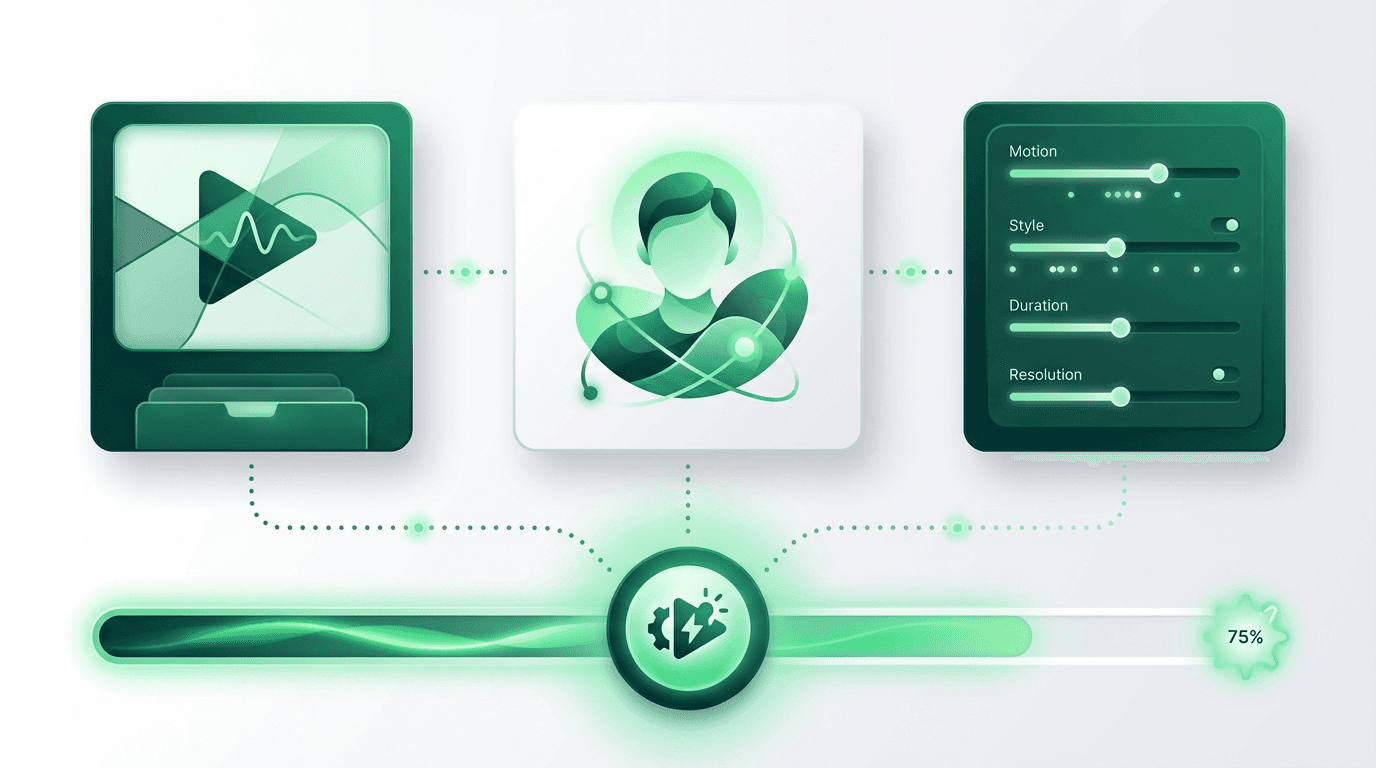
With your transformed first frame ready, you'll now upload both assets to Kling:
Open Kling AI and navigate to Video > Motion Control (see our Motion Control basics tutorial for interface walkthrough)
Select Kling 2.6 model (latest version with improved motion accuracy)
Upload your reference video (your original recording)
Upload your transformed first frame (from Nano Banana Pro)
Choose your settings:
Settings Explained:
Setting | Options | Recommendation |
|---|---|---|
Motion Reference | Exact / Partial | Use Partial when framings don't match perfectly |
Video Mode | Standard (720p) / Pro (1080p) | Test in Standard, final render in Pro |
Duration | 5-30 seconds | Match your source video length |
Original Sound | Yes / No | Yes for lip sync, No otherwise |
Adding a Prompt (Optional but Recommended):
Even though the AI has your reference video and image, a text prompt helps guide consistency:
Step 5: Generate and Adjust
Click generate and wait for your video. Generation time varies but typically takes 2-5 minutes for a 30-second clip.
Reviewing Your Results:
Check for these common issues:
Character drift: Face or body changes during the video
Clothing morph: Outfit changes or becomes inconsistent
Background artifacts: Strange objects appearing or disappearing
Motion mismatch: Movements don't align with your original performance
If Results Aren't Perfect:
Try Partial mode if you used Exact (or vice versa)
Adjust your first frame to better match the source video pose
Simplify your prompt if the AI is adding unwanted elements
Re-record with clearer, more deliberate movements
The 4 Creative Modes
Based on how much you change from your original recording, there are four distinct creative approaches:
Mode 1: Face Swap, Keep Outfit
What it is: Change only your face to another person while keeping your original clothing and environment.
Best for: Creating "what if" scenarios with minimal editing.
How to do it: In Nano Banana Pro, only modify the face. Keep clothing, pose, and background identical to your original frame.
Mode 2: Full Character Replacement
What it is: Replace your entire appearance - face, body, and clothing - with a completely different character.
Best for: Becoming fictional characters, celebrities, or entirely new personas.
How to do it: Generate a full character redesign in Nano Banana Pro. Match the pose and framing but change everything else.
Mode 3: Semi-Scene Modification (VFX)
What it is: Keep your transformed character but add visual effects, modified backgrounds, or environmental elements.
Best for: Creating action scenes, dramatic environments, or stylized content.
How to do it: After character replacement, add environmental elements like fire, rain, neon lights, or location changes to the background.
Mode 4: Full Scene Modification (Film Universe)
What it is: Complete transformation - character, environment, and stylistic treatment.
Best for: Placing yourself in movie scenes, historical settings, or entirely fictional worlds.
How to do it: Design both character and environment from scratch. Create a cohesive visual world.
Prompt Structure: The 7-Element Framework
For best results in both Nano Banana Pro and Kling, structure your prompts with these seven elements:
Style: Photorealistic, anime, cinematic, oil painting
Subject: Who is the character? Physical description or name
Clothing: What are they wearing? Be specific
Action: What movement or pose? (Should match your video)
Environment: Where are they? Indoor, outdoor, specific location
Lighting: Natural, cinematic, neon, dramatic shadows
Camera: Shot type, angle, lens effect
Template:
Example:
Limitations and Important Notes
Before you start, understand what Kling Motion Control currently cannot do:
Limitation | Details |
|---|---|
Maximum duration | 30 seconds per generation |
Resolution | 1080p maximum (Pro mode) |
People count | Single person only - no multi-person scenes |
Face visibility | Face must be visible in frame 1 |
Held objects | Objects in hands lose coherence |
Extreme motion | Very fast movements may blur or distort |
Workarounds:
For longer videos: Generate multiple 30-second clips and edit together
For multiple people: Generate each person separately and composite
For handheld objects: Add them in post-production editing
Frequently Asked Questions
What equipment do I need to get started?
A smartphone camera is sufficient for recording. You'll need accounts on Nano Banana Pro and Kling AI (both offer free tiers with limited credits). CapCut is free. No special lighting or studio equipment required, though good natural lighting helps.
Can I record with my phone or do I need a professional camera?
Phone cameras work well. Modern smartphones shoot high enough quality for Motion Control. The key factors are stable positioning (use a tripod or steady surface) and good lighting - not camera quality.
How much does it cost to generate one video?
Kling uses a credit system. Standard mode (720p) typically costs 160 credits; Pro mode (1080p) costs 240 credits. New accounts often receive free credits. For professional use, monthly plans range from $10-50 depending on volume.
Can I use these videos for commercial purposes?
Check Kling's current terms of service. Generally, AI-generated content you create with your own likeness as the base is yours to use. Using celebrity likenesses commercially requires careful legal consideration - personal/educational use is typically safer than commercial.
What if the generated character doesn't match my movements exactly?
Try switching between Exact and Partial mode. Partial mode gives the AI more flexibility to adapt movements to your character. Also ensure your first frame pose closely matches how you appear in the video start.
What's the difference between Exact and Partial mode?
Exact mode attempts to replicate your movements precisely, pixel by pixel. Partial mode gives the AI more flexibility to adapt movements to the new character's proportions. Use Exact when your transformed character has similar body proportions to you. Use Partial when body types differ significantly or when framing doesn't match perfectly.
How do I fix character drift or clothing morph issues?
Character drift (where the face or body gradually changes during the video) usually happens when the first frame isn't clear enough. Try extracting a sharper frame with better lighting. For clothing morph issues, use simpler outfits in your prompt - solid colors with minimal patterns produce more consistent results.
What's the best aspect ratio for Motion Control videos?
16:9 works best for most use cases and matches standard video platforms. Kling also supports 9:16 for vertical content (TikTok, Reels, Shorts). Match your recording aspect ratio to your intended output to avoid cropping or letterboxing.
Can I create videos longer than 30 seconds?
Not in a single generation. Kling's current maximum is 30 seconds per clip. For longer videos, generate multiple 30-second segments and edit them together. Ensure consistent lighting and character positioning at the end/start of consecutive clips for smoother transitions.
What's the best tool for generating the transformed character image?
Nano Banana Pro is popular for its quality and prompt flexibility. alici.ai offers a beginner-friendly alternative with free credits, supporting the same 7-element prompt structure and exporting at 4K resolution.
BONUS: Quick Alternative Workflow with alici.ai
Don't have time for the full 5-step workflow? Here's a faster alternative that handles character transformation in one tool:
Go to alici.ai Video Generator also AI dance generator)
Upload your reference video (the recording of yourself)
Describe your target character in one prompt using the 7-element structure
Generate and download in under 3 minutes
This approach skips the manual frame extraction and separate image generation steps. The AI handles the character transformation automatically, making it ideal for quick experiments or when you want to test multiple character concepts rapidly.
Best for: Quick iterations, testing character concepts, creators who want results without tool-switching.
Trade-off: Less granular control over the first frame compared to the manual Nano Banana Pro workflow.
Conclusion
Kling Motion Control opens up a form of creative expression that was previously impossible for individual creators. The workflow - record, extract, transform, generate - takes about an hour to learn and produces results that would have required professional VFX teams just two years ago.
Start simple: record a basic gesture or dance, transform yourself into a single character, and generate your first video. Once you understand how the system interprets your movements, you can experiment with the four creative modes and push into more ambitious projects.
Ready to try? Create your first character transformation video with alici.ai - all the AI models in one place, no tool-switching required.
The technology continues improving. Each Kling update brings better motion accuracy, longer durations, and more consistent results. What you learn now applies directly as the tools mature.
Your movements. Any character. Thirty seconds of AI video that feels like you - because it is you, transformed.
Disclosure
alici.ai is our product. This tutorial recommends alici.ai's Image Generator and Video Generator as alternatives to Nano Banana Pro and Kling direct access. We tested all workflows ourselves and believe these are genuinely useful options, but you should know about our relationship. Kling AI, Nano Banana Pro, and CapCut are third-party tools we are not affiliated with.
🎁
Limited-Time Creator Gift
Start Creating Your First Viral Video
Join 10,000+ creators who've discovered the secret to viral videos