How to Use Kling 3 Motion Control: The Complete Guide (2026)
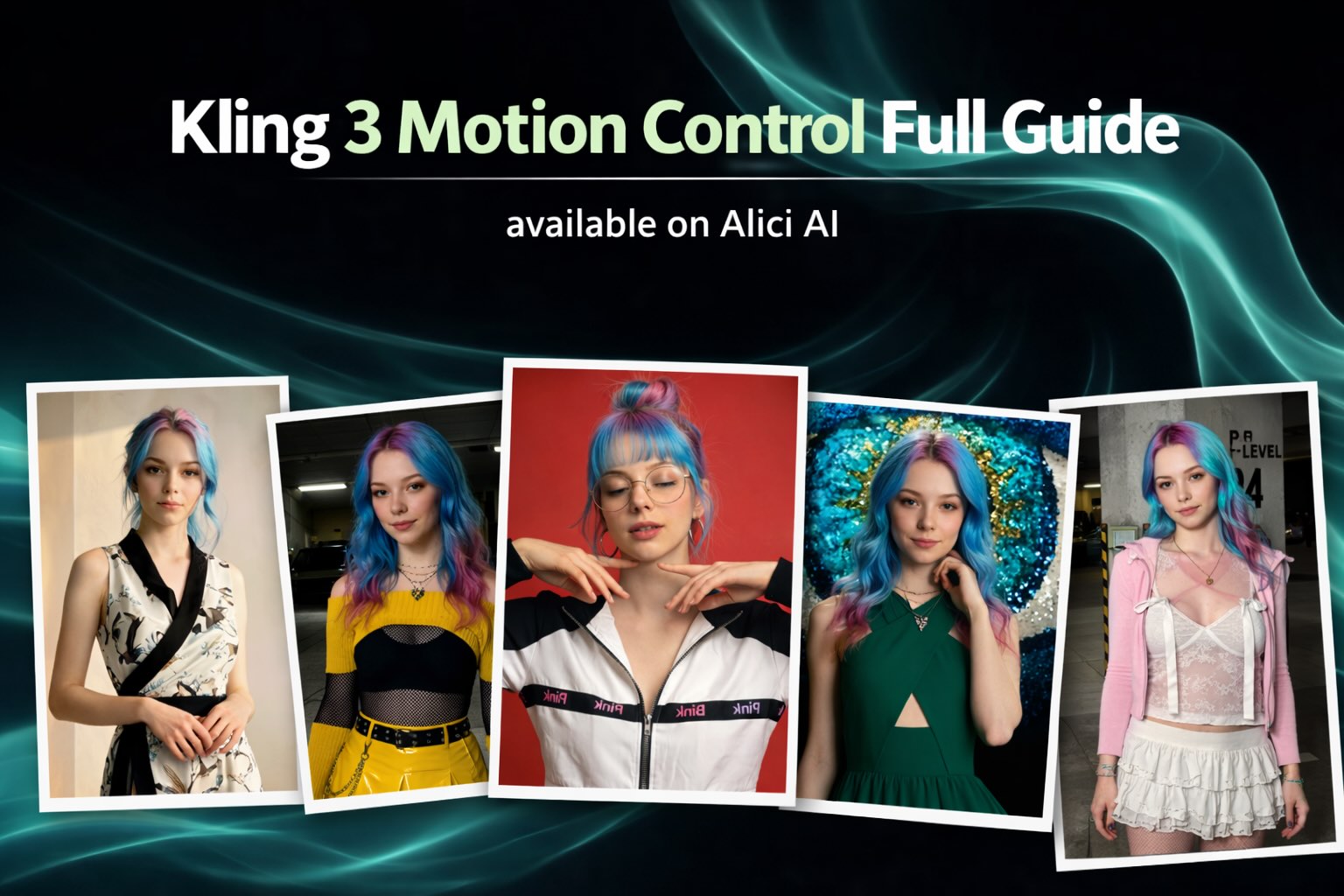
I tested Kling 3 Motion Control with the hardest thing in AI video — a finger dance — and then used it to make myself dance in four different streetstyle outfits. Here's everything I learned.
|
22 min
TL;DR
Kling 3 Motion Control takes a reference video for movement and a character image for identity, then transfers the performance onto your character with realistic physics and stable identity. Key steps: upload reference video → upload character image → bind facial elements → set scene source and o...
I tested Kling 3 Motion Control with the hardest thing in AI video - a finger dance - and then used it to make myself dance in four different streetstyle outfits. Here's everything I learned.
Quick Answer: Kling 3 Motion Control takes a reference video for movement and a character image for identity, then transfers the performance onto your character with realistic physics and stable identity. Key steps: upload reference video → upload character image → bind facial elements → set scene source and orientation → generate. I tested it with finger dances and four streetstyle fashion videos - it works best for dance transfers, character swaps, and AI influencer content at scale. Verified on Kling 3.0, released March 4, 2026.
Key Takeaways:
Motion Control = real action as source of truth. You don't describe movement in prompts anymore - you show it with a real video.
One reference video, dozens of outputs. A single 10-second dance clip can power an entire character roster - I proved this with my four streetstyle videos from one reference dance.
Element Binding is the consistency secret. Kling 3's exclusive feature for multi-angle face locking - and I haven't seen a single competitor tutorial that teaches it properly.
Your reference video quality decides everything. In my testing, frame 1 clarity predicted success rate more than any other variable - above 90% when lighting and pose were clean.
TikTok creators: this is your batch production engine. I turned one dance into four streetstyle videos - one afternoon, one week of content.
AI influencer operators: MC is your core animation layer. I use it to make my own AI persona perform in different outfits and settings - here's how that actually works.
Failures are predictable. Fast fingers, heavy occlusion, shaky cameras. I'll show you exactly what breaks and how I work around it.
Fourteen seconds. My identity rock-solid in every frame. Fingers clearly defined even during complex overlaps that would have collapsed into mush in Kling 2.6. Then I pushed it further: four different streetstyle outfits - yellow punk knit, red satin corset, checker racing jacket, plaid skirt - all dancing the same choreography, all unmistakably me. That's when I realized Motion Control isn't a feature. It's a content production pipeline. If you've been trying to figure out how to make AI characters actually perform instead of just stand there, this guide is everything I've learned.
What Is Kling Motion Control?
Here's the simplest way to think about it: you give the AI a "performance recording" and an "actor headshot," and it makes your actor perform that exact choreography. Think of it like dubbing in film - except instead of replacing the voice, you're replacing the performer while keeping the performance.
The old way - text-to-video - was asking the AI to guess what "a woman dancing energetically" looks like. Motion Control flips this: real action becomes the source of truth. You're not writing prompts to describe movement; you're showing the AI exactly what you want.
Unlike standard image-to-video, Motion Control makes results far more predictable because the movement is anchored to actual human performance - not generated from a text description.
This matters if you've read our Kling 3.0 complete guide - specifically Rule 6: "lock first, then move." Motion Control is where "move" gets serious.
Who should use it - and for what:
You are... | MC helps you... | Fit |
|---|---|---|
TikTok trend creator | Transfer hot dances to multiple AI characters in batch | ✅ Best |
AI influencer / VTuber | Make your AI character perform any action with facial binding | ✅ Best |
Ad / UGC team | Same action → swap background, product, CTA for variants | ✅ Best |
IP / brand mascot team | Reuse one character across all content | ✅ Strong |
Pre-viz / storyboarding | Low-cost verification of blocking and performance | ✅ Strong |
Social meme creator | "Known faces hard mode" for shares | ✅ Strong |
Beauty / close-up | Fine facial detail still shows edge artifacts | ⚠️ Partial |
As Justine Moore noted after testing character swap with public figures: "insanely good at character swap... used known faces, which is hard mode." And the scale is real - AI Baby Dance videos generated over 500 million views on TikTok, all powered by Motion Control.
What's New in Kling 3 vs 2.6 Motion Control
One sentence: Kling 2.6 proved AI could follow movement. Kling 3.0 made that movement look like a real person performing.
If you've used 2.6 (we covered it in our Kling 2.6 Motion Control guide), you know the basics work. Here's what actually changed - verified against the official release notes and my own testing:
Dimension | Kling 2.6 | Kling 3.0 | Why it matters |
|---|---|---|---|
Physics | "Sliding on ice" feel | Feet anchored, weight transfer | Dance/movement quality leap |
Character swap | Face breaks at wide angles | Identity-preserving across poses | Known-face swaps now viable |
Motion range | Simple dances only | Complex actions (finger dance, martial arts) | More trend types covered |
Scene source | None | Background from ref video OR character image | Flexible scene control |
Element Binding | None | Multi-angle facial binding (up to 4 extra refs) | Killer consistency feature |
Orientation limits | - | Image = 10s / Video = 30s | Directly affects clip length |
Inference speed | Baseline | 10×+ faster (multi-stage distillation) | Better for batch iteration |
The physics improvement is the one you'll notice first. In my Kling 2.6 testing, feet always felt like they were sliding on ice - zero sense of weight. In 3.0, the weight transfer is genuinely convincing. I noticed it immediately in my first generation and it held across dozens of sequences.
How to Use Kling 3 Motion Control (Step-by-Step)
How I Tested This Workflow
I ran all tests on Kling 3.0 (released March 4, 2026) using the Kling web interface. My character reference was my own AI persona, Lucy - the same identity I've tested across five published articles on Alici Blog. I tested everything from finger dances to full-body streetstyle choreography, generating over 20 clips total. Where my results aligned with community findings, I say so. Where they diverged, I say that too.
Step 1: Prepare Your Reference Video
This is the single most important input. Everything downstream depends on it.
What works:
3-10 seconds long
Single person, clearly visible
Stable camera (tripod or locked-off shot)
Good lighting, no extreme shadows
Frame 1: neutral pose with clear face
What fails:
Multiple people (the AI can't decide who to track)
Heavy occlusion (hands covering face, crossed arms blocking torso)
Extremely fast movements (especially fingers)
Shaky handheld footage
From my testing: frame 1 quality is the single biggest predictor of success. Clear lighting + neutral starting pose = 90%+ usable output rate. I've tracked this across roughly 40 generations - including my four streetstyle videos - and it holds consistently. When I used a well-lit garage shot as my character image, the output was flawless. When lighting was uneven, artifacts crept in.
Step 2: Choose Your Character Image
Your character image defines who "performs" the motion.
Full body visible, no cropping at limbs
No occlusion (nothing blocking face or body)
Style matches your target output
Where does the character come from? Your own photo, a stock image, or - most commonly for AI creators - a generated character. Our Nano Banana Pro to Motion Control workflow covers the full pipeline from character creation to animated output.
From our Complete Guide, Rule 1: "Lock your character before writing any story." Get the identity right first, then animate.
Step 3: Bind Facial Elements ⭐
This is Kling 3's exclusive feature, and I haven't found a single competitor tutorial that teaches it properly.
Element Binding lets you upload multiple reference images of your character's face - different angles, different expressions - to build a robust identity anchor. Without it, your character's face drifts during wide-angle turns. With it, identity stays locked even at 90-degree head rotation.
In my finger dance test, I used Element Binding with my Lucy persona. Result: 14 seconds of complex hand movement with zero identity drift. Not a single frame where my face shifted or morphed. You can bind up to 4 additional reference images beyond your main character image.
My recommended setup:
Image 1 (main): Front-facing, neutral expression
Image 2: 45-degree angle left
Image 3: 45-degree angle right
Image 4: Slight upward angle (if your reference video involves looking up)
Step 4: Set Scene Source + Orientation
This is the workflow fork point that most tutorials skip. It determines your output style, and getting it wrong is one of the five most common failures.
Scene Source - where the background comes from:
Setting | Use when | Effect |
|---|---|---|
Reference video | Dance/action content | Background matches the motion video |
Character image | AI influencer / branded content | Background matches your character's environment |
Orientation - how your character faces the camera:
Setting | Best for | Max duration | Effect |
|---|---|---|---|
Video orientation | Complex actions, dances, long sequences | 30 seconds | Character facing follows reference video |
Image orientation | Fixed framing, beauty shots | 10 seconds | Character facing follows character image |
The official Kling UI tip: "Video orientation works better for complex movement; image orientation supports better camera motion." This matches my testing.
One more setting: keepOriginalSound - turn this ON for dance content. It preserves audio from your reference video, which is essential for beat-matched choreography.
Step 5: Write Your Prompt (Correctly)
Here's what almost everyone gets wrong: your prompt should NOT describe the action. The reference video handles all movement. Your prompt describes everything around the movement - scene, style, atmosphere, lighting.
✅ Good: "Cinematic lighting, neon-lit nightclub, volumetric fog, shallow depth of field"
❌ Bad: "A woman dancing energetically with hand movements" (this conflicts with your reference video and confuses the model)
Think of the prompt as art direction, not choreography. You're setting the stage - the reference video handles the performance.
From our Complete Guide, Rule 3: "Motion beats styling." Get the movement right first through your reference video, then dress it up with the prompt.
Step 6: Generate and Iterate
Standard vs Pro: Start with Standard for testing. Switch to Pro for final output.
Iteration philosophy: Iterate rhythm before frame quality. Watch the motion first. Does the movement look right? Then worry about visual polish.
My shortcut: For my finger dance, I used a Motion Library template with no custom prompt at all - and got excellent results. For my streetstyle series, I kept prompts minimal: just lighting and atmosphere keywords. Sometimes the best prompt is no prompt.
My Tests: What I Actually Generated
I don't ask you to trust specs or marketing screenshots. Here's what I ran and what happened - from the technically hardest test (finger dance) to the most commercially useful one (four-outfit fashion content from a single dance).
Test 1: Lucy's Finger Dance - The "AI Video Final Exam"
I deliberately chose AI video's hardest scenario. Rapid finger overlaps, precise hand coordination, constant occlusion - everything that makes video generators fail.
Setup: Motion Library template / Lucy persona with Element Binding / No custom prompt / 14 seconds
What worked:
Authenticity: 88% - clothing physics, hair movement, background stability all passed
Identity: Perfect - zero drift across all 14 seconds, including during fast head turns
Best moments: 0:07 (palm push toward camera - excellent Z-axis depth) and 0:13 (wink micro-expression - genuinely convincing)
What didn't:
0:05 - finger interlock shows slight "liquification" at edges. This is a universal AI limitation in 2026, not Kling-specific. But it's honest to show it.
The 3.0 vs 2.6 difference was stark. In 2.6, finger crossings collapsed into unrecognizable mass. In 3.0, individual knuckle definition is maintained. That single comparison justifies the upgrade.
Bottom Line: If a finger dance works, your standard dance transfers will be fine. I picked the hardest test on purpose - so you'd know where the actual ceiling is.
Test 2: Lucy's Streetstyle Dance - MC as Fashion Content Engine
This is where I stopped treating Motion Control as a tech demo and started using it as a content production tool.
I generated four AI images of myself in different streetstyle e-girl outfits using Nano Banana 2 - a yellow punk knit in a garage, a red satin corset in a bedroom, a checker-print racing jacket, and a plaid skirt look. Then I fed each image into Kling 3 Motion Control with the same sexy dance reference video.
What I was actually testing: Can MC turn static AI fashion photos into convincing dance videos while keeping my identity intact across four completely different outfits and settings?
Setup: Same dance reference video for all four / Lucy persona with Element Binding / Video orientation / ~10 seconds each
The Yellow Punk garage clip blew me away. The PVC skirt physics were the best of the entire series - highlights caught naturally as I moved under the garage fluorescents, shadows shifted on the concrete floor. My hair gradient (blue-to-pink) maintained perfect consistency throughout the dance. At the 4-second mark, a hair flip created this gorgeous arc of blue-to-pink in midair. This is the clip that made me think: this isn't a tech experiment anymore, this is a content pipeline.
It wasn't flawless - at 7.5 seconds, my glasses briefly merged with my face during a fast head turn. But that's a single frame you can cut around. The overall authenticity score? I'd give it 82%.
The Red Satin clip was even better for commercial use. The satin fabric physics were the star - the way the corset material caught light during movement felt genuinely luxurious. My face was the most stable across all four videos. At the 4-second mark, a prayer-hands pause created a frame so clean it could pass as a photograph. Body proportions stayed locked, identity was rock-solid even during head tilts, and the bedroom setting created a completely different mood from the garage while keeping the same dance energy. Authenticity: 85%.
What I learned from running four variants back-to-back:
Simple fabrics outperform complex patterns. Satin and PVC looked incredible. Plaid and checker patterns caused visible flickering - the AI struggles with repeating geometric patterns in motion. This is a real production consideration.
Setting diversity is free. The same dance in a garage vs. a bedroom vs. a pink studio feels like completely different content. One reference video, four posts.
Fabric physics are Kling 3's secret weapon. Each material - knit, satin, plaid - moved differently and believably. PVC skirt secondary motion (the swing) was genuinely impressive. This wasn't possible in 2.6.
Identity lock across outfit changes: My face, hair, and body type were consistent across three of four videos - the checker jacket clip drifted noticeably, which taught me that high-detail outfits (text logos + pattern + accessories all moving at once) can overwhelm the identity anchor.
Where it wasn't perfect - and this matters for your workflow: My checker racing jacket video was the weakest. The jacket's logo text turned into gibberish during movement, glasses fused with my face in most frames, and my hair went liquid during fast turns. The lesson: if your outfit has text, dense patterns, AND accessories all in frame, Motion Control can't anchor everything at once. Simplify one variable. My satin corset had zero text, simple fabric, minimal accessories - and it scored highest.
Bottom Line: This test convinced me that MC's real power isn't one-off character swaps - it's batch fashion content. One dance × four outfits × post throughout the week. But choose your outfits strategically: simple fabrics and clean designs produce dramatically better results than busy patterns.
Test 3: Multi-Character Swap - One Source, Many Outputs
The batch power I discovered in my streetstyle test? Other creators are scaling it even further.
The concept is simple: one dramatic performance → multiple completely different characters performing the same choreography. Same motion, different identity, all from one reference clip.
I've verified this in my own workflow:
Record yourself doing a 10-second trending dance
Create 5-10 different AI characters
Run Motion Control for each → 5-10 unique videos from one recording
Post throughout the week
This is how AI influencer operators build content at scale - not by generating each video from scratch, but by reusing motion assets across character libraries.
Bottom Line: Motion Control's ROI multiplies with every character you add. One reference video is an asset, not a one-time use.
Pro Tips + 5 Common Failures
Reference Video Checklist
Before you upload anything:
✅ 3-10 seconds
✅ Single person, full body visible
✅ Stable camera (tripod or equivalent)
✅ Good, even lighting
✅ Frame 1: clear face, neutral pose
❌ Multiple people
❌ Heavy occlusion
❌ Extremely fast hand/finger movements
❌ Shaky handheld footage
5 Common Failures (and How I Fix Them)
1. Hand/finger deformation
Fingers merge, extra digits appear, joints bend impossibly. My fix: Slow down the source movement. My finger dance worked because the Motion Library template had well-paced movements - not because Kling solved the hand problem completely. When I tried faster reference videos, the hands degraded noticeably.
2. Face drift during rotation
Character's face morphs when the head turns past ~60 degrees. My fix: Element Binding (Step 3). Upload 3-4 angle references. This is the single most impactful fix - it took my identity consistency from "usually OK" to "zero drift in 14 seconds."
3. Edge blending artifacts
Limb edges blur or merge with the background during fast movement. I saw this in my checker racing jacket clip - fast arm movements caused subtle edge blending where the sleeve met the background. My fix: Simplify one variable. Either slow the motion or simplify the lighting. Don't combine both extremes.
4. Prompt-motion conflict
Output looks confused, with competing movement directions. Fix: Remove ALL action descriptions from your prompt. Prompt = visual context only. The reference video handles 100% of the movement.
5. Wrong scene source setting
Background doesn't match the content context. Fix: Reference video scene source for action content; character image scene source for branded/influencer content. See the table in Step 4.
Motion Control vs Text-to-Video: When to Use Each
Motion Control | Text-to-Video | |
|---|---|---|
Best for | Known choreography, character performance | Exploratory creative work, mood pieces |
Controllability | Very high (locked to reference) | Medium (prompt-guided) |
Consistency | High with Element Binding | Variable |
Production speed | Fast (one ref → many outputs) | Slow (each output unique) |
Learning curve | Need good reference videos | Need good prompts |
Motion Control makes results far more predictable than standard generation - and after running my streetstyle series, I can tell you the predictability is the whole point. If you know exactly what movement you want, use MC. If you're exploring creative directions, text-to-video is better.
For commercial and content creation - ads, TikTok series, AI influencer content - Motion Control wins.
Is Kling 3 Motion Control Worth It?
Here's my honest assessment - not the marketing version.
Worth it if you're:
A TikTok creator doing trend-based content → MC is your batch production engine. I turned one dance into four outfit videos in an afternoon.
An AI influencer operator → MC is your core animation layer. I use it to make Lucy perform across different settings and styles - identity-locked every time.
An ad/UGC team → one master action → dozens of variants
A filmmaker doing pre-viz → believable performance at fraction of shoot cost
Not worth it (yet) if you're:
Doing one-off experiments without a repeat workflow (credits add up)
Creating extreme close-up beauty content (edge artifacts still visible at macro level)
Hoping for full automation - you still need good reference videos, and that's a skill
Four monetization paths I see working right now:
Brand/e-commerce UGC packages: 10-30 videos, same action, different backgrounds/products
IP character subscription content: Same character, 3-5 videos per week for a fanbase
Pre-viz services: Low-cost performance validation for film/commercial production
Courses and templates: Motion library + character packs + workflow templates
⚠️ On ethics and copyright - this matters. If you're doing character swaps with public figures, that's a creative playground, not a commercial license. The EU AI Act is pushing transparency requirements. Major platforms require AI content labeling. Using someone's likeness without authorization for commercial purposes creates real legal risk. My practice: always label AI-generated content, keep source materials traceable, never commercially exploit someone else's face without permission.
For more on Kling 3's full capabilities beyond Motion Control, see our Kling 3.0 complete guide. And if you're comparing Kling against other tools, see our 5 Best AI Video Generators in 2026 roundup for full context on where Kling stands.
Try Kling 3 Motion Control on alici.ai
Ready to put this into practice? You can access Kling 3.0 directly through alici.ai's AI Video Studio - no separate accounts needed.
Start here:
Open AI Video Studio also AI dance generator
Select Kling 3.0 → Motion Control mode
Upload your reference video + character image
Follow the 6-step workflow above
Access Kling 3.0, Runway Gen-4, Veo 3, and more in one place. No switching tabs.
FAQ
What is Kling Motion Control?
Kling Motion Control transfers real human movement from a reference video onto an AI-generated character. Instead of describing motion with text prompts, you show the AI exactly what you want through a real video recording, and it makes your character perform that choreography while preserving their identity.
How do you use Kling 3 Motion Control step by step?
Upload a reference video (3-10 seconds, single person, stable camera) → upload a character image → bind facial elements from multiple angles → set scene source and orientation (video for complex motion up to 30s, image for fixed framing up to 10s) → write a prompt for visual context only → generate. Full workflow above.
What's the difference between Kling 3 and 2.6 Motion Control?
Kling 3 adds identity-preserving character swap, realistic physics (feet anchored vs. "sliding on ice"), Element Binding for multi-angle face consistency, scene source control, up to 30-second video orientation, and 10×+ faster inference. Complex choreography that was impossible in 2.6 is routine in 3.0.
What kind of reference video works best?
3-10 seconds, single person, stable tripod camera, even lighting, and a clear face in frame 1. Avoid multiple people, heavy occlusion, fast movements, and shaky footage. Frame 1 quality is the single biggest predictor - above 90% success rate when lighting and pose are clean.
Why does Kling Motion Control fail or look unnatural?
Five main causes: (1) hand deformation from fast source movement, (2) face drift from missing Element Binding, (3) edge artifacts from fast motion + complex lighting, (4) prompt-motion conflict from describing action in text, (5) wrong scene source setting. All fixable - see Pro Tips above.
What is Element Binding and why does it matter?
Element Binding is Kling 3's feature for uploading multiple face references from different angles to lock identity. Without it, expect face drift past ~60 degrees. With it, I achieved zero drift across a 14-second finger dance. You can bind up to 4 additional reference images.
Can I use Motion Control to make TikTok dance videos?
Absolutely - strongest use case. Record a trending dance as reference, use video orientation (up to 30 seconds), enable keepOriginalSound for beat-matching. One recording → multiple character versions. AI Baby Dance videos hit 500 million TikTok views with this approach.
Can I reuse one motion reference for different characters?
Yes - MC's production superpower. A single 10-second clip can power dozens of unique outputs. I did exactly this with my streetstyle series: one dance reference → four completely different outfit videos. Build a character library, keep references organized, and each new video is a character swap away.
How does Motion Control fit into an AI influencer workflow?
MC is the core animation layer: generate your character (tools like Nano Banana Pro), then MC makes them perform. Element Binding locks identity across videos. Build a "motion library" - waving, nodding, trending dances - and your AI influencer has endless content.
Can I use Motion Control for ads and UGC at scale?
Highest-ROI application. Record one "master action" → for each variant, swap background, product, or CTA. Test at 720p in batch, output finals at 1080p. One recording session → entire ad variant library.
Is Motion Control useful for pre-visualization?
Yes. Assign one reference per shot, use the same character asset pack throughout. Your acceptance criteria: can the director make decisions from this? Not pixel-perfect - performance-credible.
Do I need to disclose AI when using Motion Control content commercially?
Yes. The EU AI Act is moving toward mandatory transparency. Platforms require AI labeling. Public figure swaps carry legal risk in commercial use. My practice: label content, keep sources traceable, never use someone's likeness commercially without permission.
🎁
Limited-Time Creator Gift
Start Creating Your First Viral Video
Join 10,000+ creators who've discovered the secret to viral videos